Easy Guide: Install 2FA in Drupal

2FA means two-factor authentication. With 2FA, people need password and a code from their phone. This makes the site more safe.
Follow these steps to install and set up 2FA in Drupal.
1. Download the modules
First, you need the modules. Open your terminal and run:
composer require drupal/tfa drupal/key drupal/encrypt drupal/real_aes drupal/ga_login -w
This will download all the files you need.
2. Install the modules
Now, install the modules. Run this command:
drush in tfa key encrypt real_aes
This will make the modules active on your site.
3. Add a Key
Go to this page in Drupal: /admin/config/system/keys/add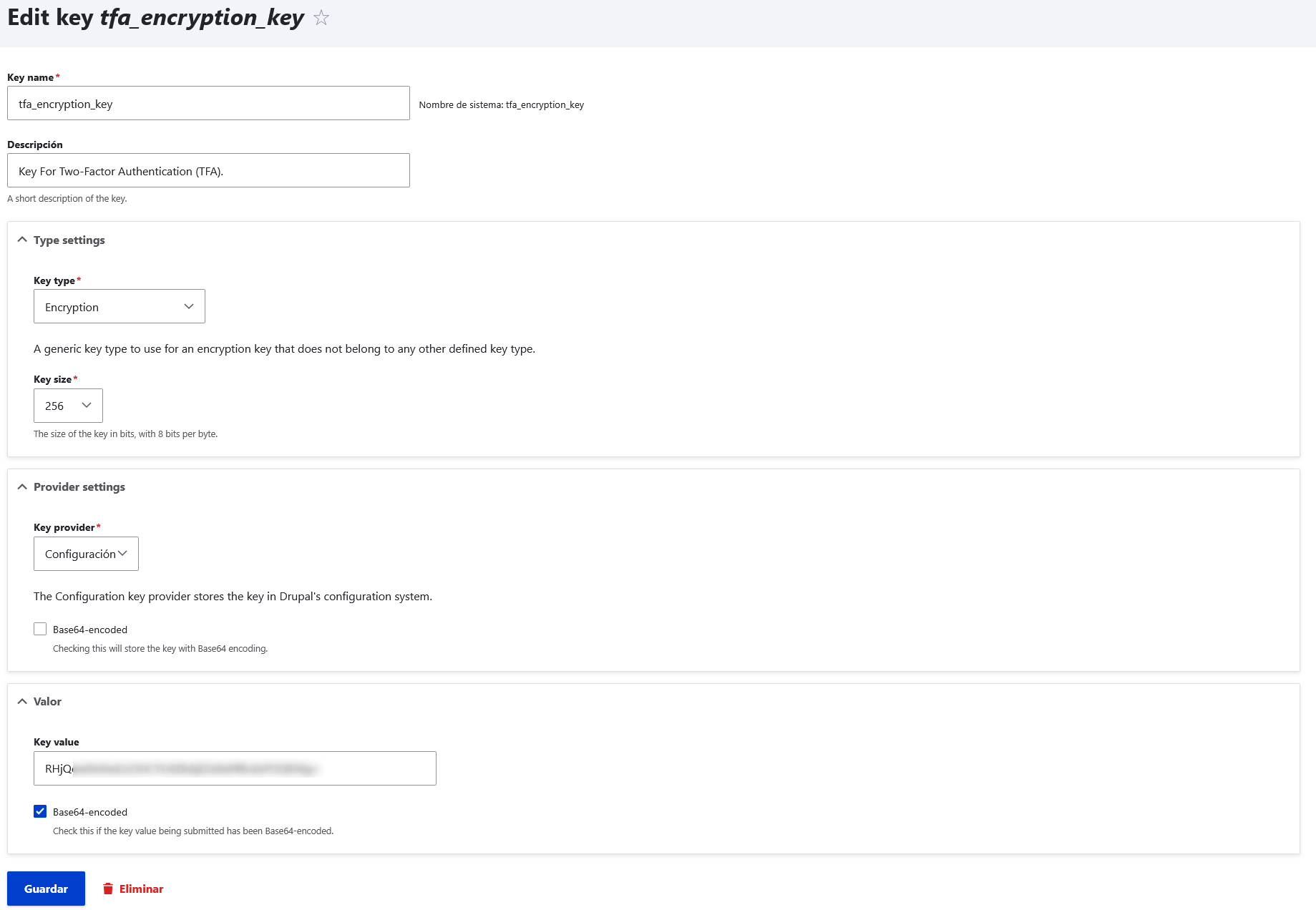
3.1 Create Key in Terminal
Open terminal and run: openssl rand -base64 32 
Here you will create a key. The key helps to lock and unlock information.
4. Add Encryption Profile
Go to: /admin/config/system/encryption/profiles/add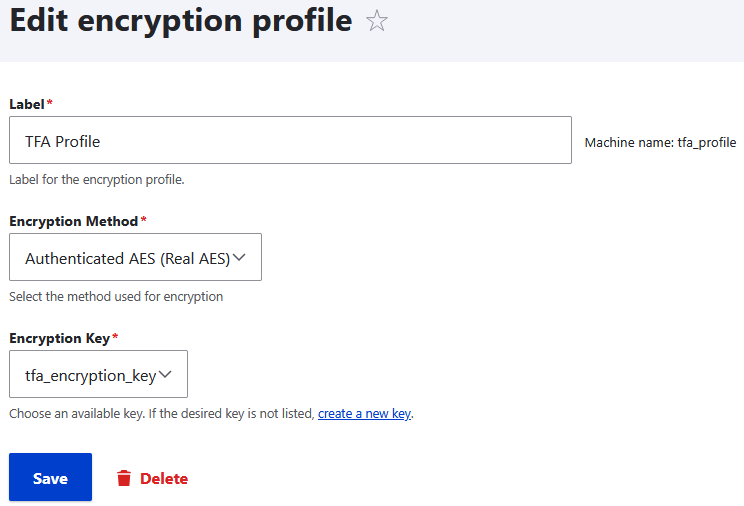
Here you connect the key to encryption. Encryption means hiding information so only the system can read it.
5. Setup TFA
Go to: /admin/config/people/tfa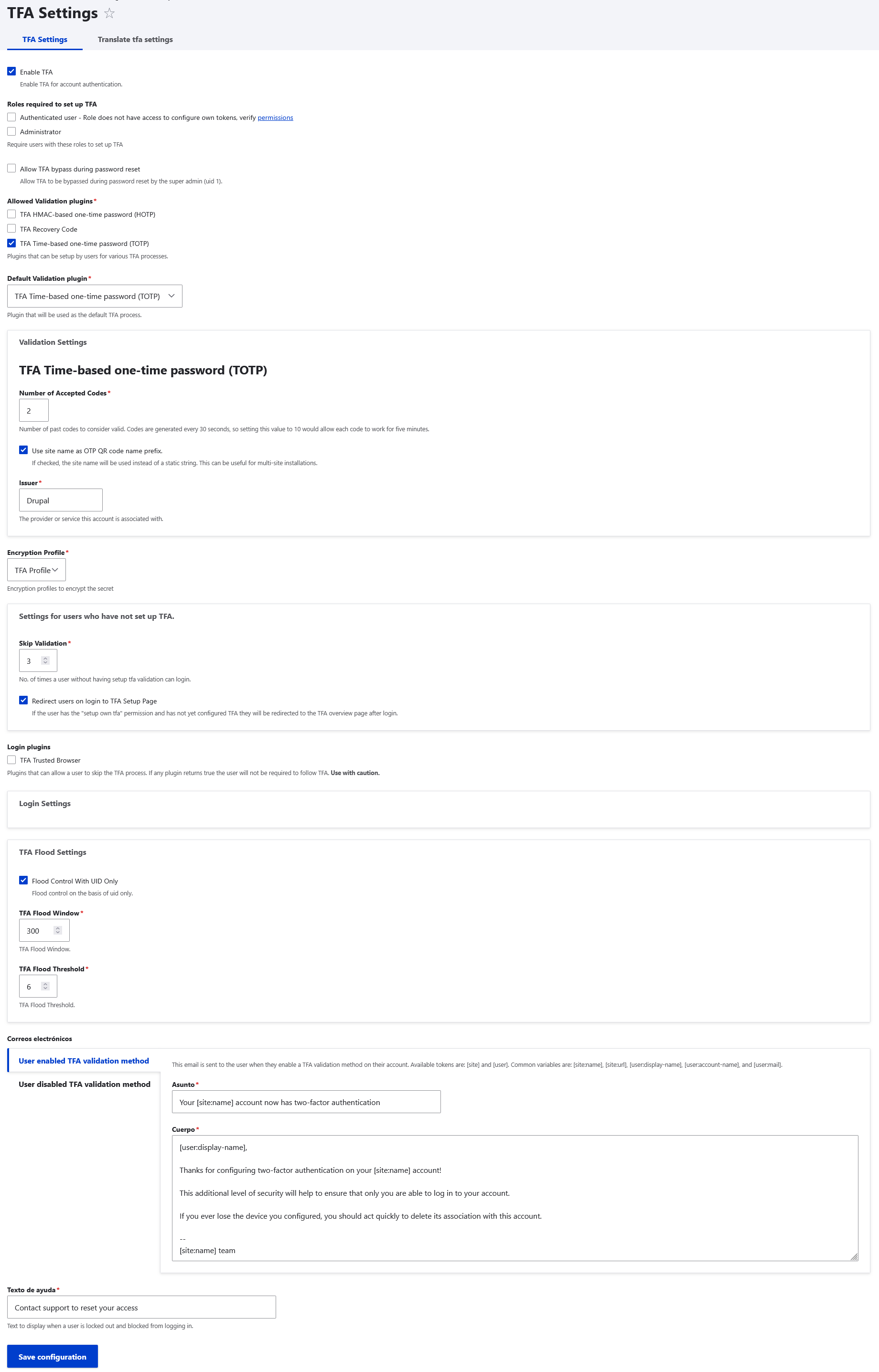 Here you can choose Google Authenticator or other methods. This will make 2FA active for accounts.
6. Change Permission
Go to: /admin/people/permissions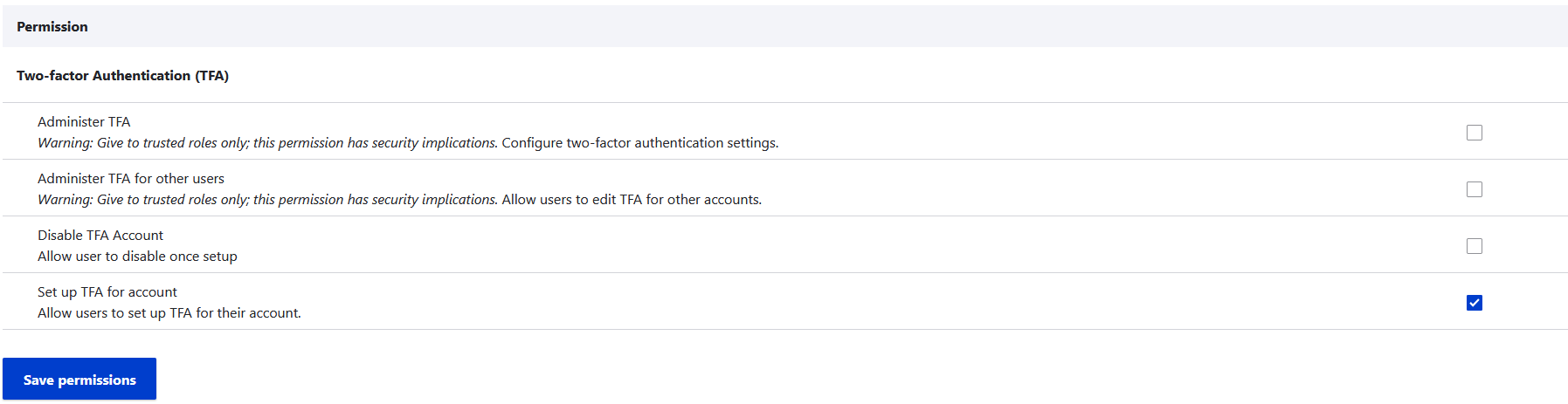 Change this permission: Set up TFA for account. It will send users to configure 2FA.
7. Login
After you log in, you will see a screen that says you need to set up 2FA. Click on "Set up application" to continue.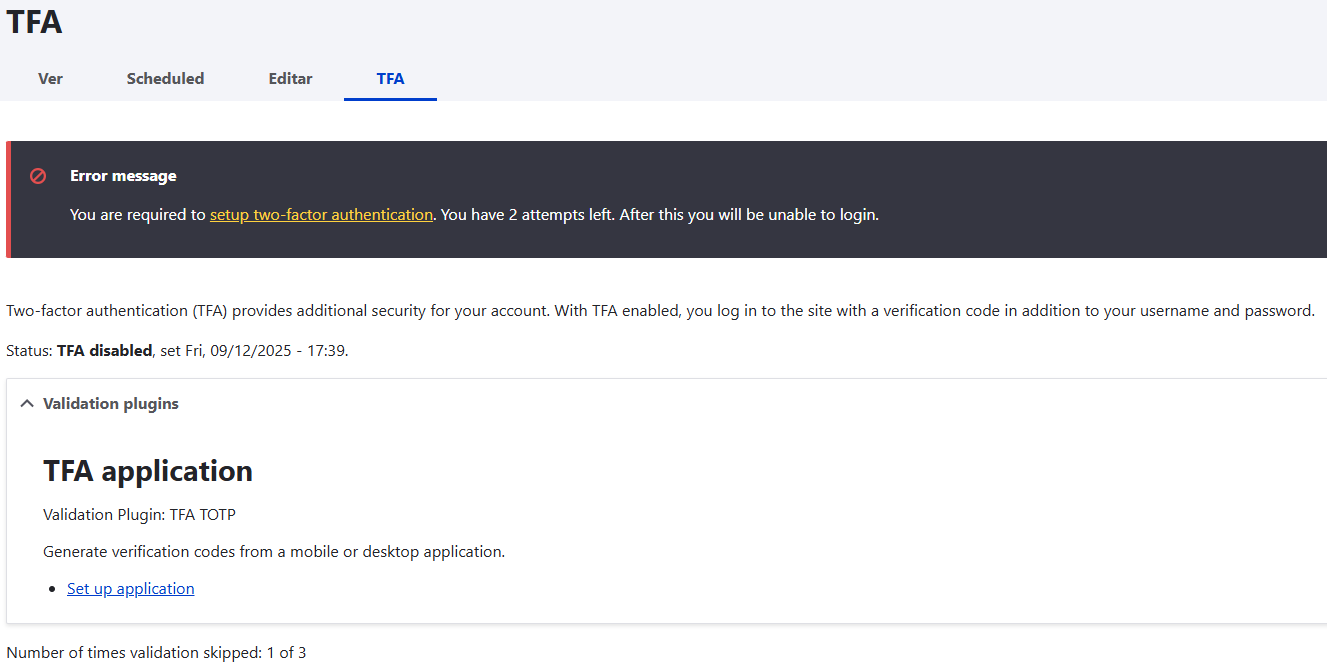
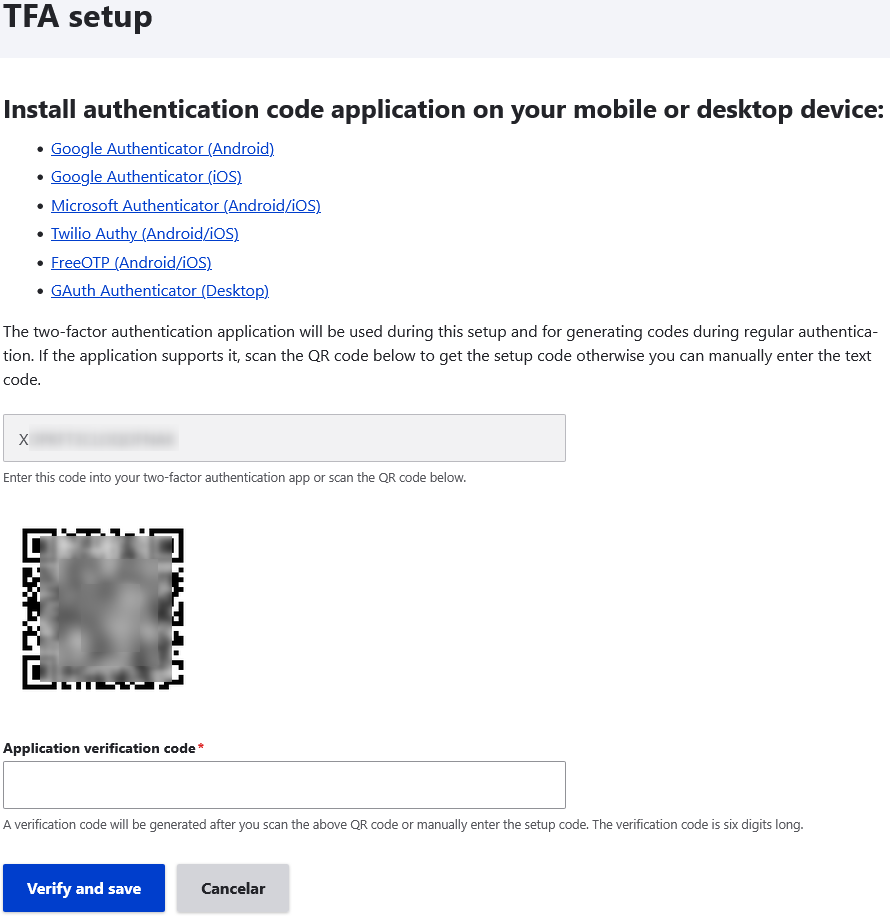
7.1: Set up application
Download one of the apps in the list. I recommend Google Authenticator. Open the app and scan the QR code. Then, type the code from the app into the box to finish setup.
8. Login Again
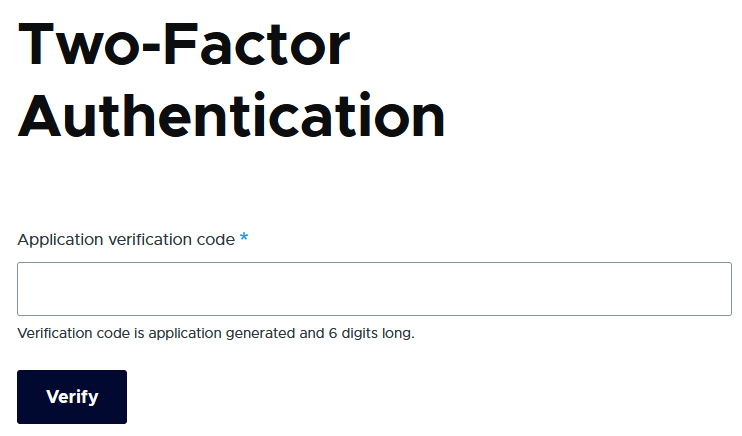
Next time you log in, you will see a screen that asks for a 2FA code. Open the app you used (for example, Google Authenticator). Type the code from the app. If the code is correct, you can enter the site.
Finish
Now your Drupal site is more safe, 2FA helps protect your account, Only you can log in with your password and the code from the app, Try it now on your site!